 Squadron Datapad
How to Use Squadron Datapad
New here? Do the five steps below and you are playing. Already flying? Jump to what you want to do.
▶Your first game in 5 minutes
- Open app.squadrondatapad.com, or the iPhone or Android app.
- On the home screen, tap +, then New squad. Pick a faction and a rule set.
- Tap Add Pilot and pick a ship and pilot. Repeat for each ship you brought.
- Tap Play.
- Each round: tap Set dial on every ship, then Next Phase through the round, then End Round.
What do you want to do?
Each answer takes about two minutes to read.
- 1Install the app
- 2Build a squad
- 3Import or share a list
- 4Track dials, tokens and damage
- 5Roll dice, time a game, check a rule
- 6Play live with a friend
- 7Run a HotAC or FGA campaign
- 8Sync squads and see past games
- 9Look up a setting or term
1Install the app
You can skip installing: the web app builds squads and tracks games in any browser. Live play needs the phone or tablet app. It is all free, with no ads and nothing to buy.
- Web: open app.squadrondatapad.com in any browser. Nothing to install.
- iPhone and iPad: download it from the App Store.
- Android: download it from Google Play.
On first launch, a short walkthrough shows you around. Tap Skip if you would rather explore on your own; you can replay it any time from Settings.
2Build a squad
Tap + on the home screen, then add pilots and upgrades. Points add up as you go.
- Tap + on the home screen and choose New squad.
- Pick your faction and your rule set (XWA, AMG, X2PO or First Edition 1.0). Points and legality follow the rule set you choose.
- Tap Add Pilot, choose a ship under Select Ship, then a pilot under Select Pilot.
- Tap any empty upgrade slot on a pilot to equip a card. Only cards that ship can legally take are offered.
- Watch the points bar at the top. It updates live and warns you when the squad is over budget or not legal.
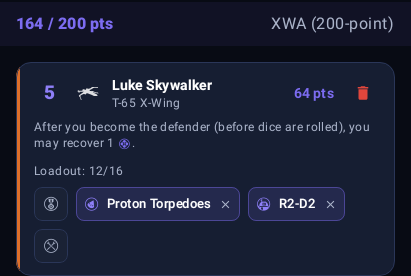
Tip: tap Duplicate on a ship to add a copy, or press and hold a ship to drag it into a new order. You can also pick the squad's three obstacles in the builder, so they are ready when the game starts.
3Import or share a list
Import: copy XWS, then + and Import from clipboard. Share: open a squad and tap the share button.
Import a list
- In your other squad builder (YASB, xwing-legacy and so on), export the squad as XWS and copy it.
- In Squadron Datapad, tap + on the home screen and choose Import from clipboard.
- If any upgrade is not legal on its ship, the app removes it and tells you which ones.
Share a list
Open a squad and tap the share button. You can choose:
- Share link: a squadrondatapad.com link that opens the squad in the app, or on the web for friends who have not installed it.
- Export XWS: for pasting into other builders or tournament tools.
- Copy as text or Copy for Discord: a readable list for chat.
4Track dials, tokens and damage
Open a squad and tap Play. Every ship gets a card that replaces its dial, tokens and damage deck.
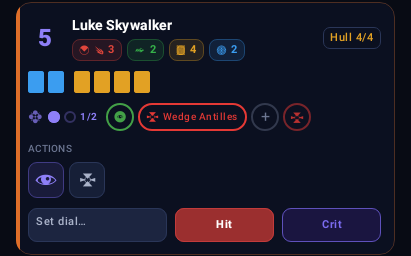
- Planning: tap Set dial on each ship to choose its maneuver. It stays hidden until you tap Reveal.
- Actions and tokens: tap an action to mark it used, and add focus, stress, lock and other tokens from the token row.
- Damage: tap Hit or Crit. Shields go first, then the app deals cards from a shuffled damage deck. Crits flip face up so you can read them.
- Phases: tap Next Phase to move through the round. The This phase strip lists every ability that triggers now, so nothing gets forgotten.
- Tap End Round to clear the round's tokens and start the next one.

- When the game is over, end it and log the result. It goes into the squad's record and your match history.
Tip: your game saves as you play. If you close the app or your phone dies, the game is waiting on the home screen when you come back.
5Roll dice, time a game, check a rule
All three live on the game screen.
- Dice Tray: roll attack and defense dice, then modify, reroll or change results before you lock them in.
- Game Timer: count up, or count down from a round limit (75 minutes by default). It keeps running even if you leave the board and buzzes when time is up.
- Rules reference: tap the rules button to search the rules. Or turn on Rule cards in Settings, then tap and hold any token, action or dial to see the exact rule for it.
6Play live with a friend
One player taps Play live and shares a code; the other joins with it. Works in the iPhone, iPad and Android apps, and both players need to be signed in.
Each player runs their own squad on their own device, and you both see each other's boards update in real time.
If you are hosting
- Start a game with your squad, then tap Play live.
- Choose Start a game and tap Get invite code.
- Have your friend scan the QR code, or read the code out loud. Codes expire after a few minutes; tap Get a fresh code if one runs out.
If you are joining
- Scan your friend's QR code with your phone's camera. Or start a game with your own squad, tap Play live, choose Join their game and type the code.
- If the app asks which squad you are flying, pick it and tap Join with this squad.
Tip: both players need to be on the same edition (2.0 or First Edition). If the app says one of you needs an update, update and try again.
7Run a HotAC or FGA campaign
Create a campaign pilot from +, fly missions, and bank XP after each one. Covers Heroes of the Aturi Cluster and Flight Group Alpha.
- Tap + on the home screen and create a campaign pilot. Choose the campaign, then the ship.
- Your pilots appear under Campaign Pilots, alongside your squads.
- Open a pilot and tap Play to fly a mission. Use Add XP during the game to log damage, kills and objectives.
- Tap End when the mission is over. The Resolve mission screen totals your XP, handles eject rolls if you were shot down, and banks it.
- Spend banked XP on upgrades and ranks from the pilot's screen. The app tracks which slots you have unlocked.
8Sync squads and see past games
Sign in from Settings (the gear icon on the home screen) to sync. Past games are under Match history.
- Sign in with Google or Apple to sync your squads across all your devices, including the web app. Signing in is optional for everything except live play.
- Match history: every game you have logged, newest first, with a full play-by-play log of each.
- Rule cards: turn on hold-for-rules, so holding any token, action or dial shows its rule.
- Free Play: start games with any squad, even one that is not tournament-legal. Handy for reduced-point and house-rule games.
- Start tutorial: replay the guided walkthrough.
- Send Feedback: report a bug or ask for a feature. Every message is read.
9Quick reference
What each setting and term means, and where to find it. Every entry has its own link to share, like squadrondatapad.com/guide#free-play.
Settings
- Free Play
- Lets you start a game with any squad, even one that is over points or not tournament-legal. Use it for reduced-point games and house rules. Leave it off for events.
- Where: Settings, Free Play switch.
- Gameplay hints
- Highlights the abilities that matter in the current phase. Turn it off for tournament and organized play.
- Where: Settings, Gameplay hints switch.
- Rule cards
- When on, holding any token, action or dial in a game shows the rule for it.
- Where: Settings, Rule cards switch.
- My Hangar (owned ships)
- Record the ships you own, so you can build lists from your real collection.
- Where: Settings, My Hangar.
Rule sets
- XWA
- X-Wing Alliance: the community's actively updated 2.0 points, published at xwing.life. Upgrades spend each pilot's loadout.
- Where: Chosen when you create a squad.
- AMG
- Atomic Mass Games' official points. AMG ended X-Wing in 2024, so these are final and will not change. Upgrades spend each pilot's loadout.
- Where: Chosen when you create a squad.
- X2PO
- The X2PO community's points for 2.0 Legacy play, published at x2po.org. Upgrades cost squad points.
- Where: Chosen when you create a squad.
- 1.0 (First Edition)
- The original game, with the costs printed on each card and a 100-point squad. Upgrades cost squad points.
- Where: Chosen when you create a squad.
Formats
- Standard
- The tournament format: the standard card pool and the rule set's points limit.
- Where: Chosen when you create a squad.
- Extended / Wild Space
- A bigger card pool that includes cards left out of Standard. X2PO calls it Wild Space (250 points).
- Where: Chosen when you create a squad.
- Wild Space Light
- X2PO's Wild Space with a 200-point limit. Same cards, smaller squads.
- Where: The Wild Space Light switch, after picking Wild Space.
- Epic
- Big battles with huge ships and wings. There is no fixed total, so you set the points.
- Where: Chosen when you create a squad.
Squad terms
- Loadout
- In XWA and AMG, each pilot has a loadout budget for upgrades, shown as e.g. Loadout: 12/16. Upgrades spend loadout, not squad points.
- Where: On each pilot in the squad builder.
- Standard Loadout (SL)
- A pilot printing that comes with a fixed set of upgrades. You cannot change them.
- Where: Marked on the pilot in the picker.
- XWS
- The shared file format squad builders use to swap lists. Paste one in, or export yours.
- Where: +, Import from clipboard; or a squad's share button, Export XWS.
Ready to fly? Build your first squad in about five minutes.
Launch Web App